
Configure the html-splitter-modular-cms execution script to programmatically cut long-form documents into responsive, prefabricated building blocks. By using automated header boundary fragmentation, you segment deep content fields into clean, modular sections that drop straight into custom HTML widgets.
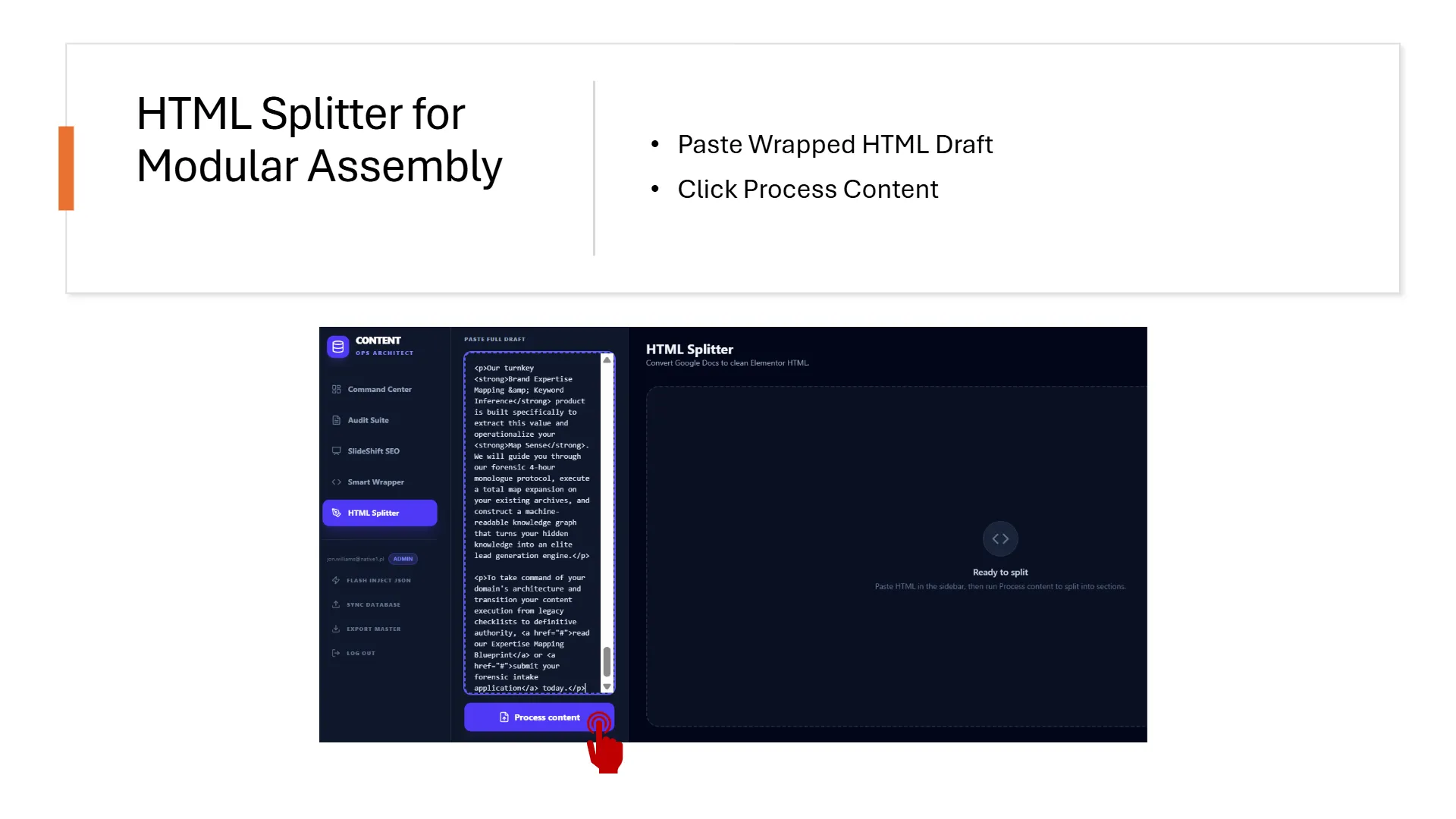
1. Eradicating the Gutenberg Drag-and-Drop Treadmill
Pasting long articles block-by-block inside standard visual page templates is an administrative grind. Content teams waste hours dragging individual paragraph containers, manually formatting header lines, and annotating style properties—tedious actions that degrade operational velocity. The HTML Splitter solves this by segmenting your final audited document at the element level. It reads the raw HTML body code, isolates heading elements, and chunks the code into clean, modular building blocks that you can paste straight into isolated HTML widgets within seconds.
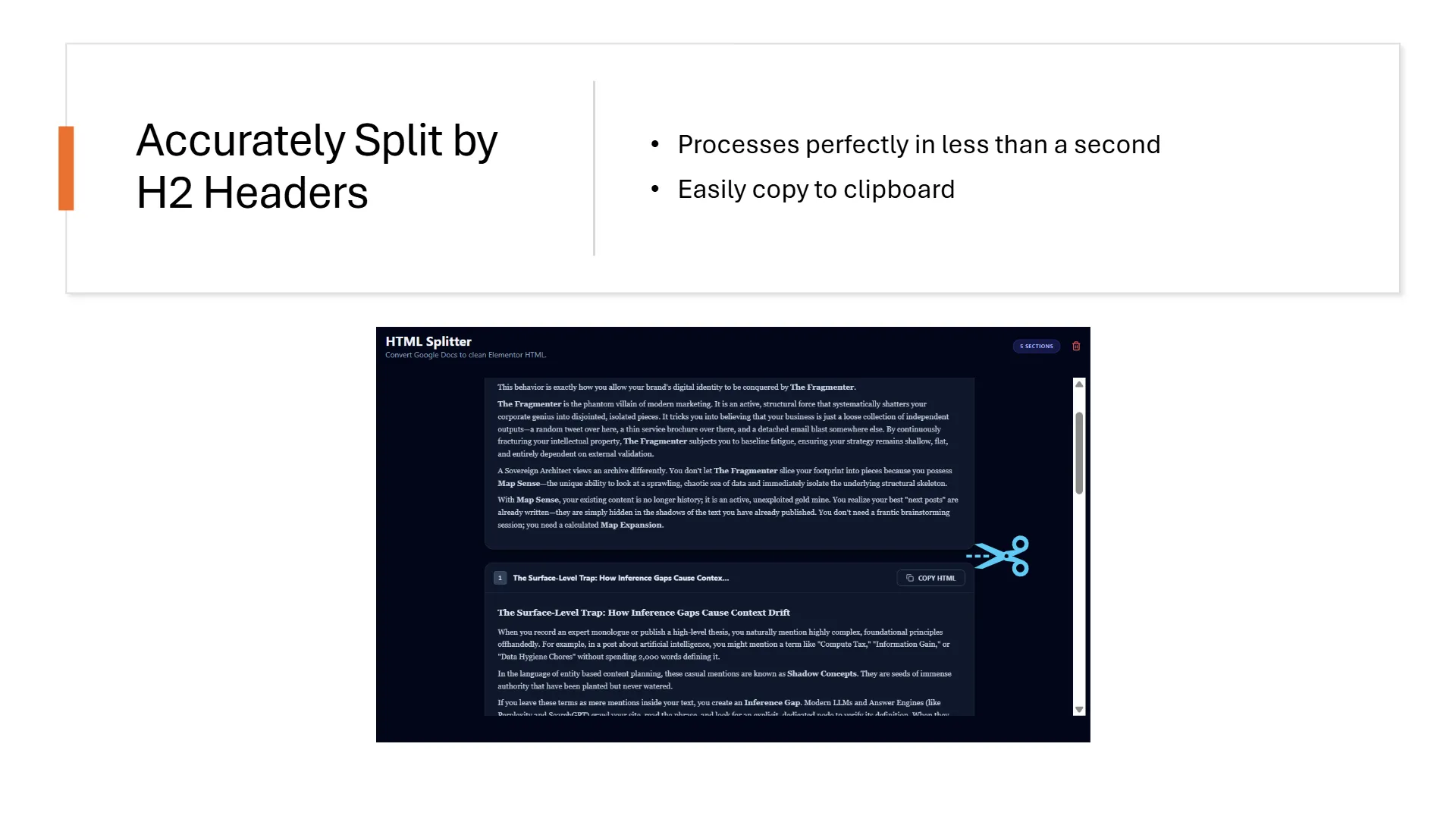
2. The Bones, Joints, and Cartilage Blueprint
Advanced page construction treats your content document layout as a physical skeletal structure. By abandoning traditional visual layout templates, you assemble pages using an explicit data framework:
- The Bones: The core structural text fragments—including your initial intro text area (the zero block) and all underlying
h2andh3subsections. - The Joints: High-salience media insertions—including your SlideShift visual modules, responsive tables, and custom streaming video embeds injected cleanly between your text blocks.
- The Cartilage: Short, prominent transitional sentences and custom call-to-action blocks styled inside the HTML code to bridge your text segments gracefully into upcoming graphics.
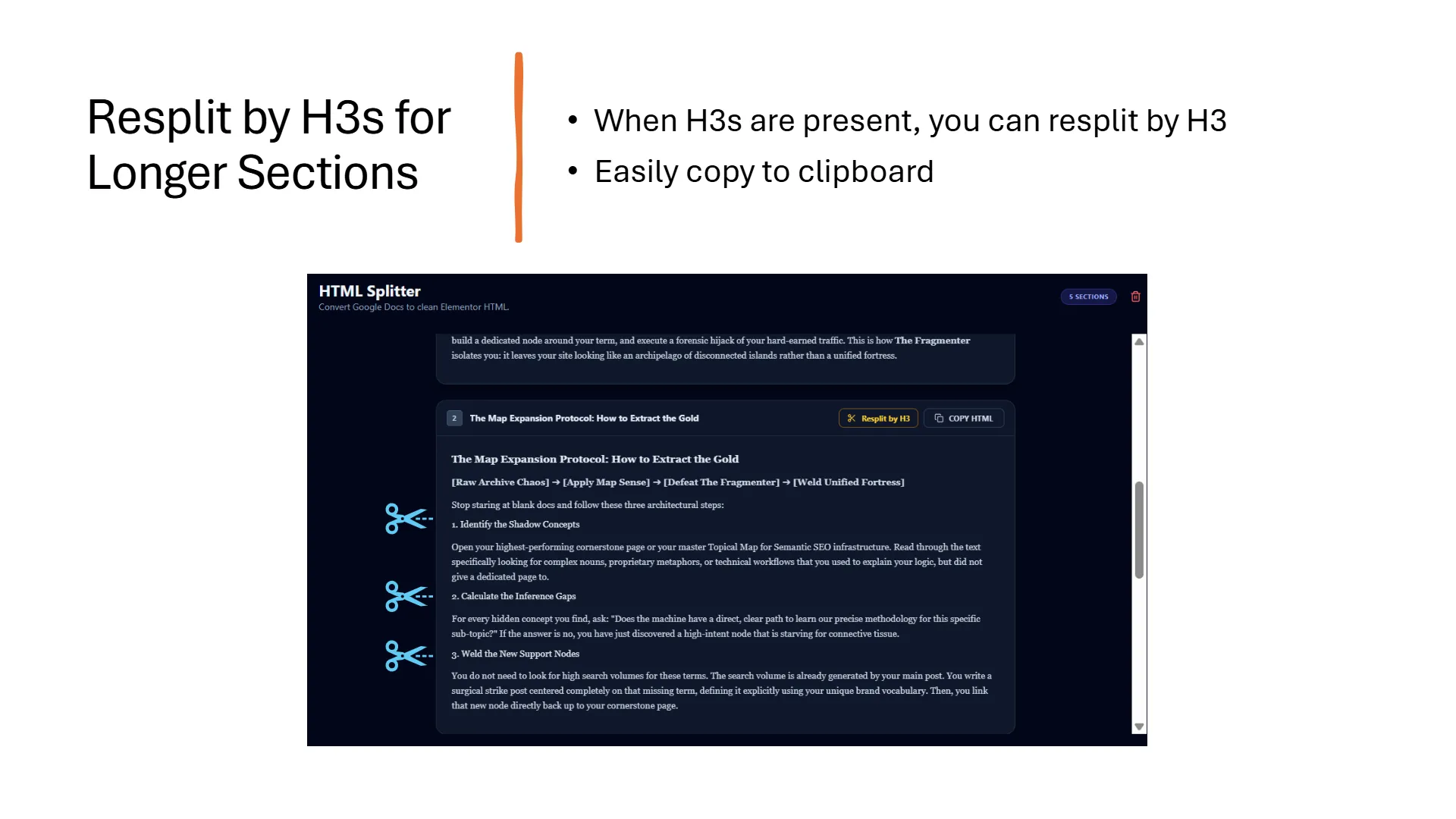
3. Isolating Header Tree Boundaries for Snippet Injection
The segmentation engine reads your text variables sequentially. Every time it detects an h2 element, it registers a primary boundary marker, truncates the active data array, and instantiates a clean content object. Your draft will carry a default h1 header tag at its absolute head; when moving code snippets into your WordPress dashboard layout, remember to drop the h1 tag from your zero block to prevent twin title errors inside your template. If you want to inject graphic assets between deeper subsections, you can easily toggle the UI option to re-split sections by h3 boundaries, outputting separate clipboard copy containers.
Frequently Asked Splitter Questions
Why does segmenting my content into raw HTML widgets instead of using individual paragraph blocks cut my template container bloat by half?
<div> blocks; pasting single HTML blocks containing headings and paragraphs together bypasses these wrapper layouts completely to save rendering energy.