
SlideShift for Image Search Dominance

Help Center // Documentation Node 041

Configure the SlideShift image SEO optimization pipeline to convert landscape graphic assets into high-resolution, search-optimized WebP components. By using PDF files as a dynamic delivery mechanism, you generate hardcoded HTML snippets packed with programmatic alt text to claim total visual dominance in search results.
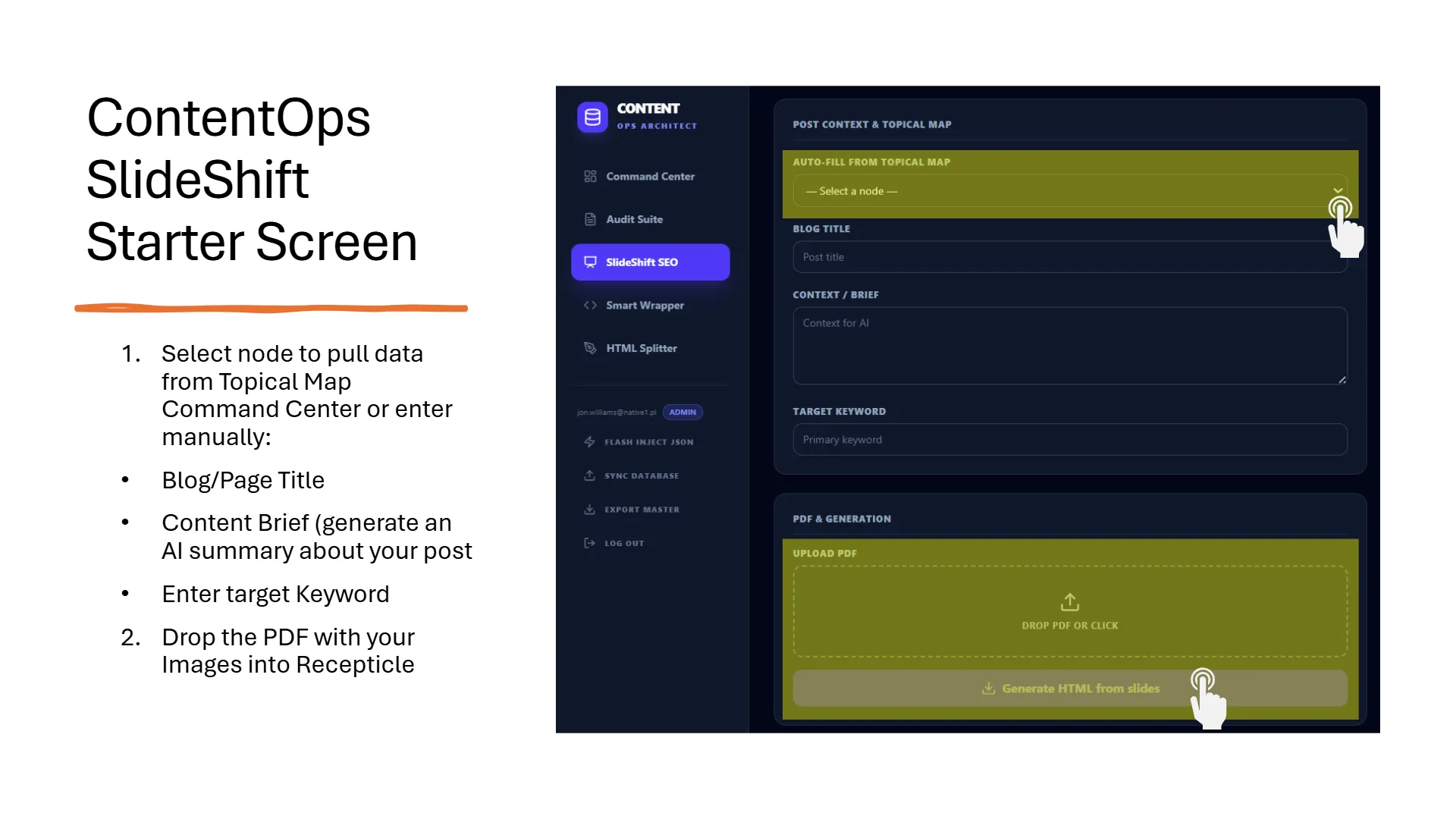
The ContentOps SlideShift Starter Screen, a dark-themed UI, displays the 'SlideShift SEO' option highlighted in the left navigation. The main panel features 'POST CONTEXT & TOPICAL MAP' with an 'AUTO-FILL FROM TOPICAL MAP' dropdown showing '- Select a node -' being clicked, along with input fields for 'BLOG TITLE' ('Post title'), 'CONTEXT / BRIEF' ('Context for AI'), and 'TARGET KEYWORD' ('Primary keyword'). Below, the 'PDF & GENERATION' section includes an 'UPLOAD PDF' area with 'DROP PDF OR CLICK' and a 'Generate HTML from slides' button, which is also being clicked by a hand cursor. Accompanying text on the left details two steps: '1. Select node to pull data from Topical Map Command Center or enter manually: Blog/Page Title, Content Brief (generate an AI summary), Enter target Keyword' and '2. Drop the PDF with your Images into Recepticle'.
This image illustrates the ContentOps SlideShift Starter Screen, guiding users through the initial setup to either auto-fill content context from a Topical Map or manually input blog details before uploading a PDF to generate HTML from slides. It demonstrates the first steps in leveraging SlideShift for efficient content publishing workflows.

1. Bulk Creation via PDF Delivery Mechanisms

Do not save web graphics one by one inside canvas builders; this manual friction invites the Time Thief. Instead, compile your landscape-style layout slides inside a unified PowerPoint or Google Slides document and export the collective file as a single PDF. SlideShift reads this PDF as an administrative ingestion vehicle. It unpacks the slides into isolated panes, processes them into speed-optimized WebP graphics, and executes a programmatic slugification routine to strip spaces and characters from your file names for pristine file-level SEO formatting.
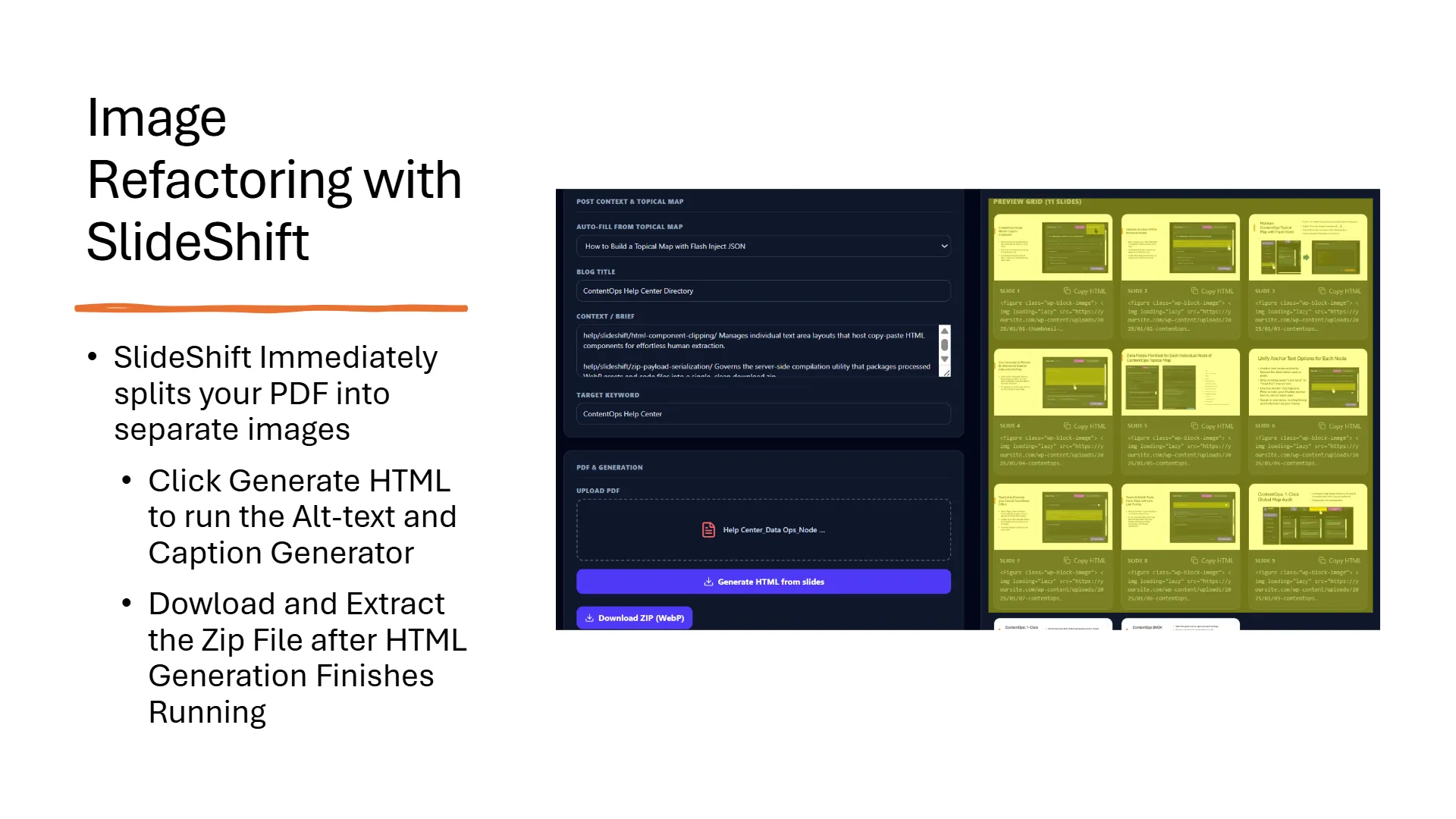
SlideShift application interface demonstrating PDF to HTML conversion and metadata generation. The left panel outlines three steps: splitting PDF into images, generating HTML with alt-text and captions, and downloading the ZIP file. The main UI shows 'POST CONTEXT & TOPICAL MAP' with 'BLOG TITLE: ContentOps Help Center Directory' and 'TARGET KEYWORD: ContentOps Help Center'. The 'PDF & GENERATION' section displays an uploaded 'Help Center_Data Ops_Node...' PDF, with 'Generate HTML from slides' and 'Download ZIP (WebP)' buttons. A 'PREVIEW GRID (11 SLIDES)' on the right shows nine slide thumbnails (1-9), each with accompanying HTML code snippets for WordPress image blocks, and text overlays 'Data Fields Manifest for Each Individual Node of ContentOps' and 'Unify Anchor Text Options for Each Node'.
SlideShift automates the conversion of PDF presentations into individual image assets, generating alt-text and captions to streamline content publishing. This tool accelerates ContentOps by transforming static PDFs into web-ready, SEO-optimized visual content.

2. Mapping Inferences with the SEO Summary Brief

If you are optimizing assets for an existing node, use the dashboard selector to automatically inherit cluster metadata parameters directly from your map. For net-new targets, you must supply a concise title, target keyword, and descriptive SEO brief. You can write this yourself or utilize an inline assistant (like Gemini or Copilot) to generate a high-density summary of your topic. SlideShift passes this brief to Gemini along with your raw image bytes to ensure the vision model generates hyper-specific, context-grounded alt descriptions and structural captions.
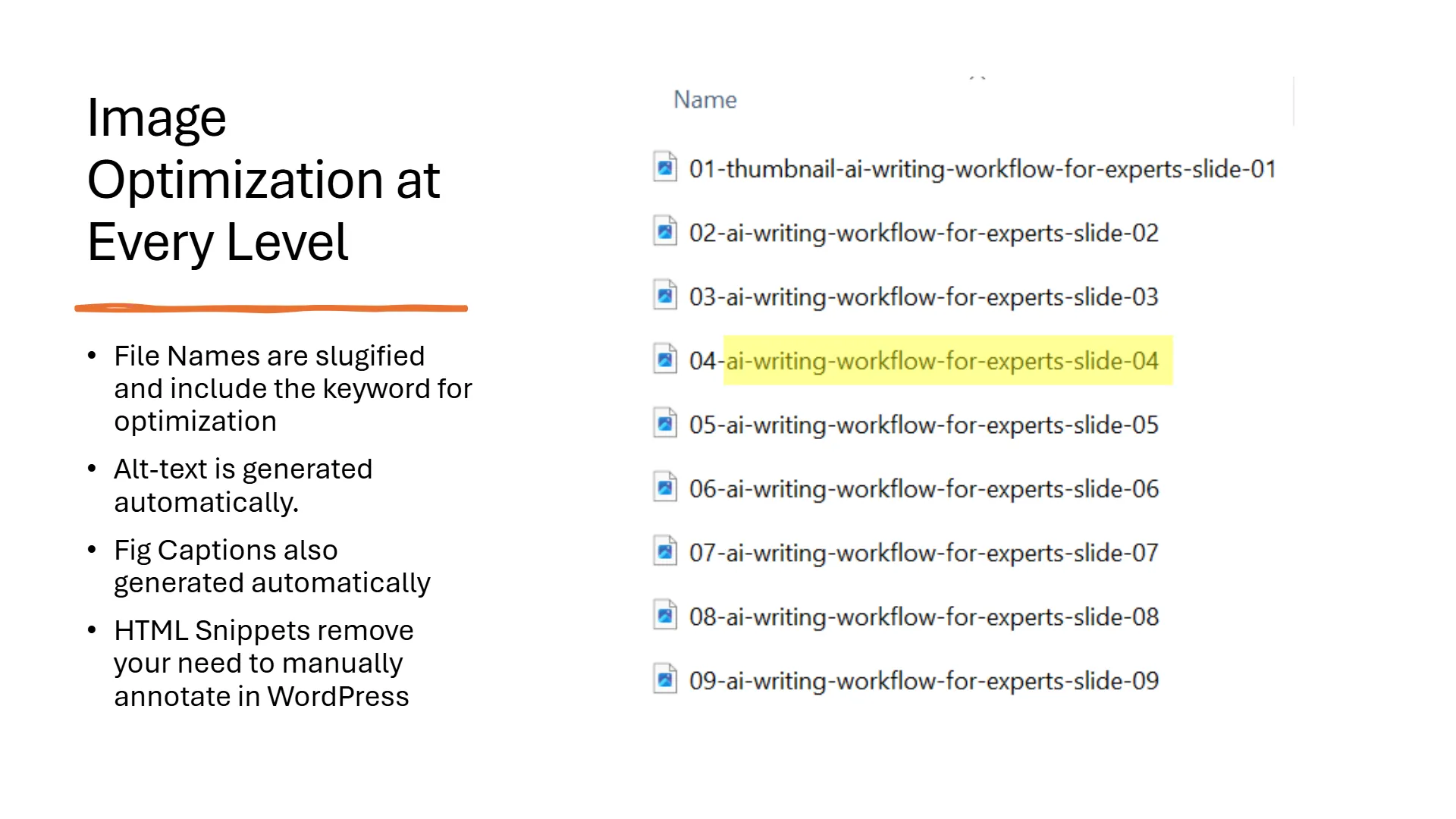
Slide titled 'Image Optimization at Every Level' details four key points: file names are slugified with keywords for optimization, alt-text is generated automatically, figure captions are also generated automatically, and HTML snippets eliminate manual annotation in WordPress. The right side displays a file directory list showing nine image assets, with '04-ai-writing-workflow-for-experts-slide-04' highlighted in yellow, exemplifying a slugified, keyword-rich filename.
This slide demonstrates how ContentOps Publishing Accelerators automate image optimization at every level, from slugified, keyword-rich filenames to automatically generated alt-text and captions, streamlining the publishing workflow.

3. Rebuilding Base Directory Snippets

Once you extract the processed images from the downloaded zip file, upload them to your WordPress media library in a single drop.
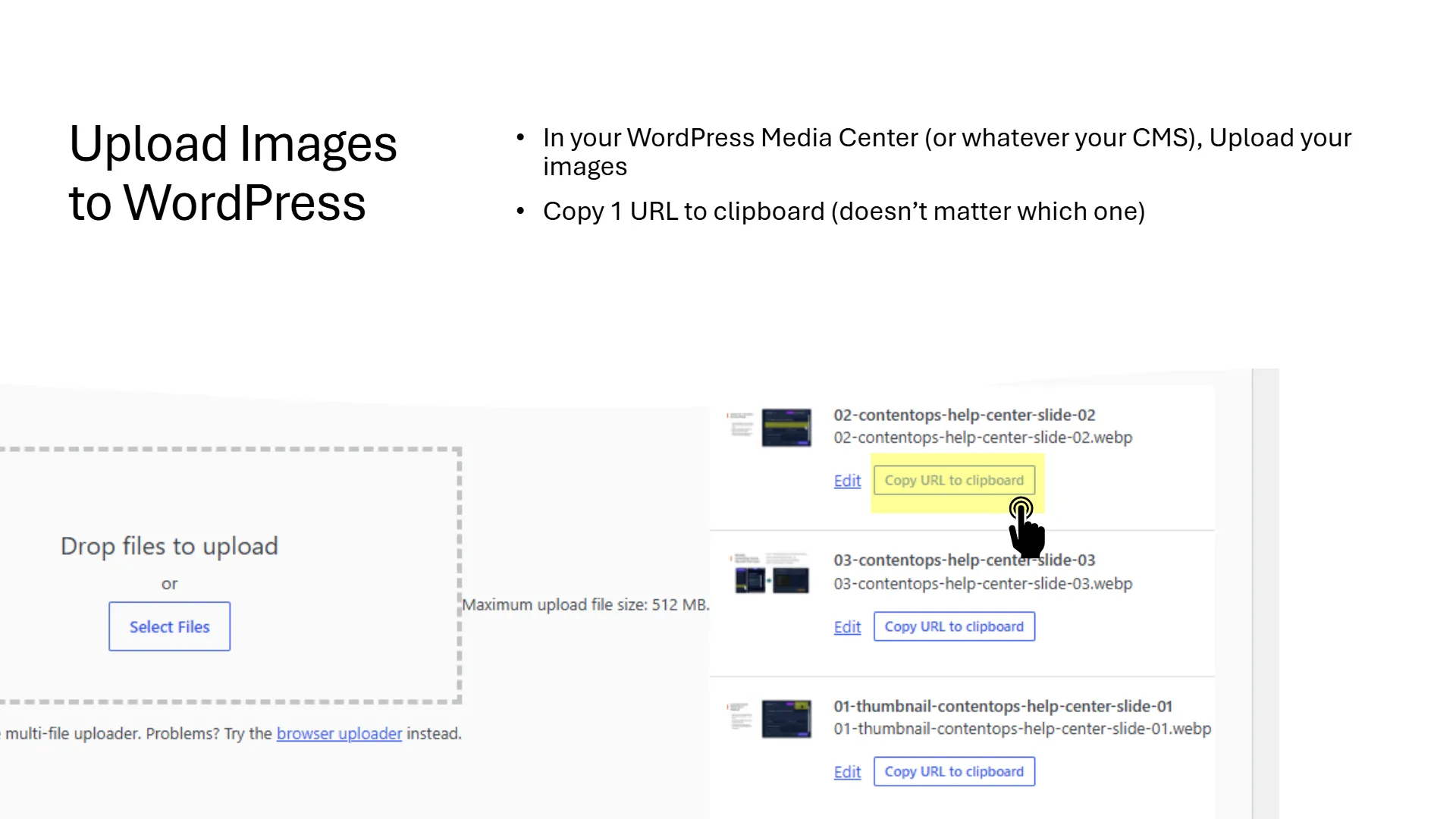
WordPress Media Library interface demonstrating image upload and URL copying. The left section shows a 'Drop files to upload' area with a 'Select Files' button and a 'Maximum upload file size: 512 MB' note. The right section lists uploaded files, including '02-contentops-help-center-slide-02.webp', with a hand cursor highlighting its 'Copy URL to clipboard' button, illustrating the process of obtaining image URLs after upload.
This step illustrates how to upload images to your CMS and then copy their URLs, a crucial action for integrating visual assets into ContentOps publishing accelerators like SlideShift, HTML Splitter, or HTML Wrapper.

To finalize the code wiring without copying individual paths, select just one file URL and paste it into the base parameter field at the bottom of SlideShift. Delete the specific file name string from the right of the path, leaving only the root directory frame intact (e.g., wp-content/uploads/2026/06/).
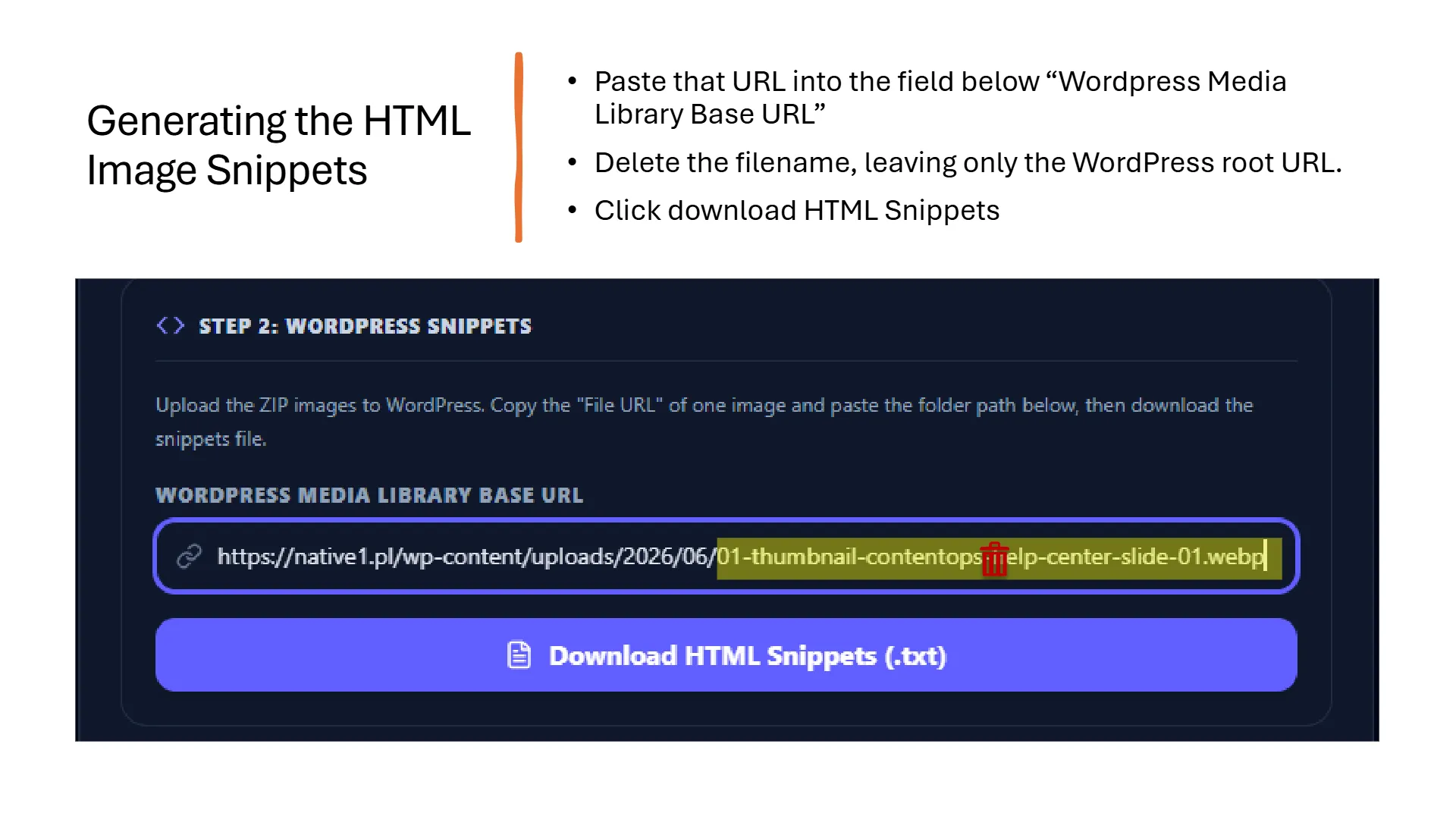
WordPress UI screenshot demonstrating 'STEP 2: WORDPRESS SNIPPETS' for generating HTML image snippets. The 'Wordpress Media Library Base URL' input field displays https://native1.pl/wp-content/uploads/2026/06/01-thumbnail-contentops-help-center-slide-01.webp, with the filename 01-thumbnail-contentops-help-center-slide-01.webp highlighted for deletion, leaving the base URL. Instructions state to paste the URL, delete the filename, and click 'Download HTML Snippets (.txt)'.
To generate HTML image snippets for ContentOps publishing accelerators, users must first prepare the WordPress Media Library Base URL by deleting the specific image filename, ensuring only the root path remains.

SlideShift automatically reads this coordinate, reconstructs the specific path strings for every sibling slide asset, and compiles a comprehensive text document of copy-paste HTML widgets ready for deployment. New to SlideShift? Learn how the full SlideShift image SEO pipeline works — including how it integrates with your Topical Map to generate entity-labelled alt text automatically.
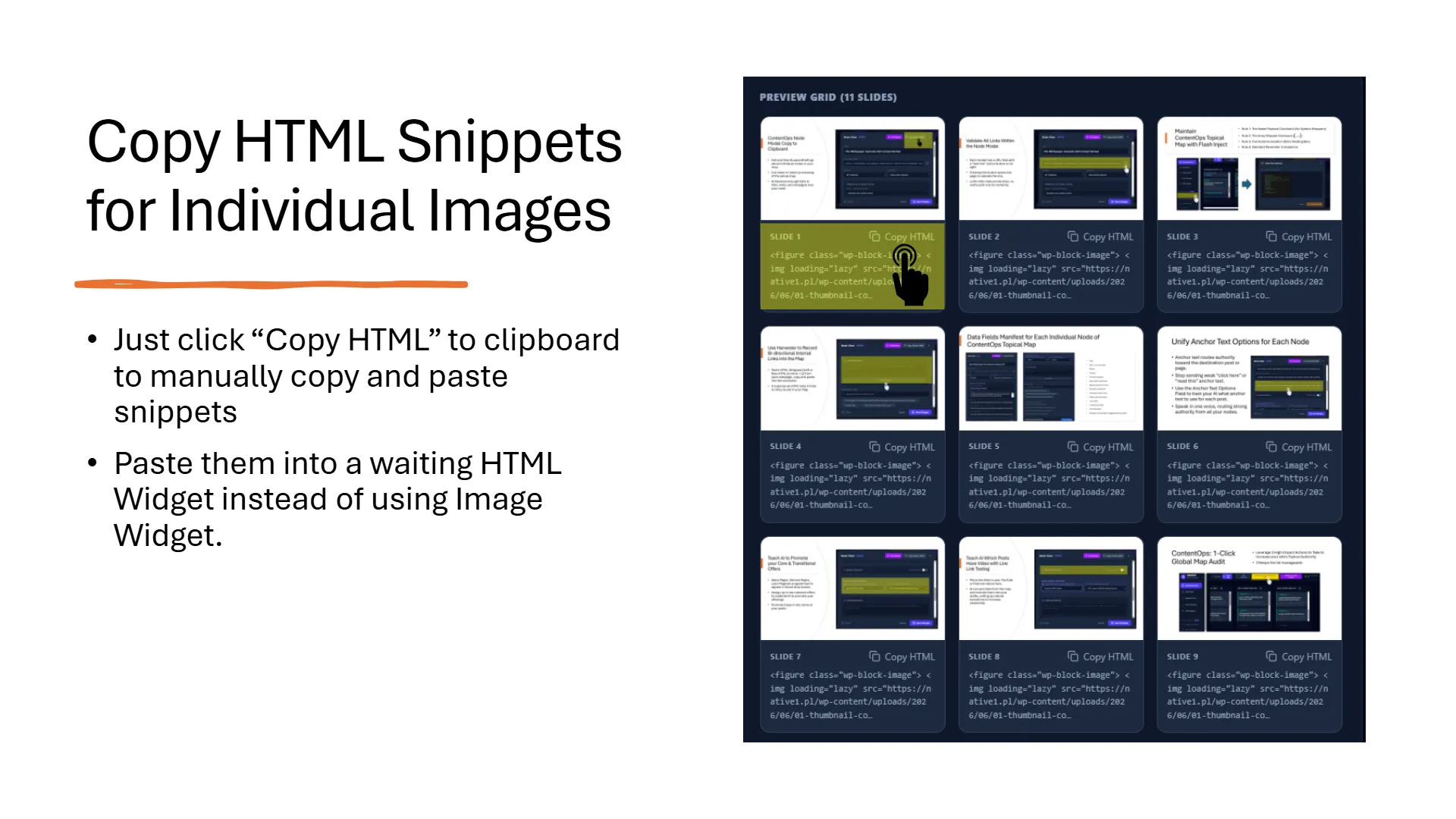
Slide 6 of 6 titled 'Copy HTML Snippets for Individual Images' with two bullet points: 'Just click
This slide demonstrates how to obtain HTML snippets for individual images directly from a preview grid, allowing users to manually paste them into an HTML Widget for precise content integration. This method offers a publishing accelerator for embedding visual assets in ContentOps workflows.

Frequently Asked SlideShift Questions

How does the SlideShift snippet engine pull our uploaded media graphics directly into a raw WordPress template block without forcing individual image uploads?

The suite reads your provided root directory structure to dynamically reassemble the file paths for every slide payload, combining the unique file paths with vision-derived alt text inside an integrated HTML template block. See the full SlideShift feature breakdown including WebP conversion, automated slug generation, and image search dominance strategy.